



Key Takeaways
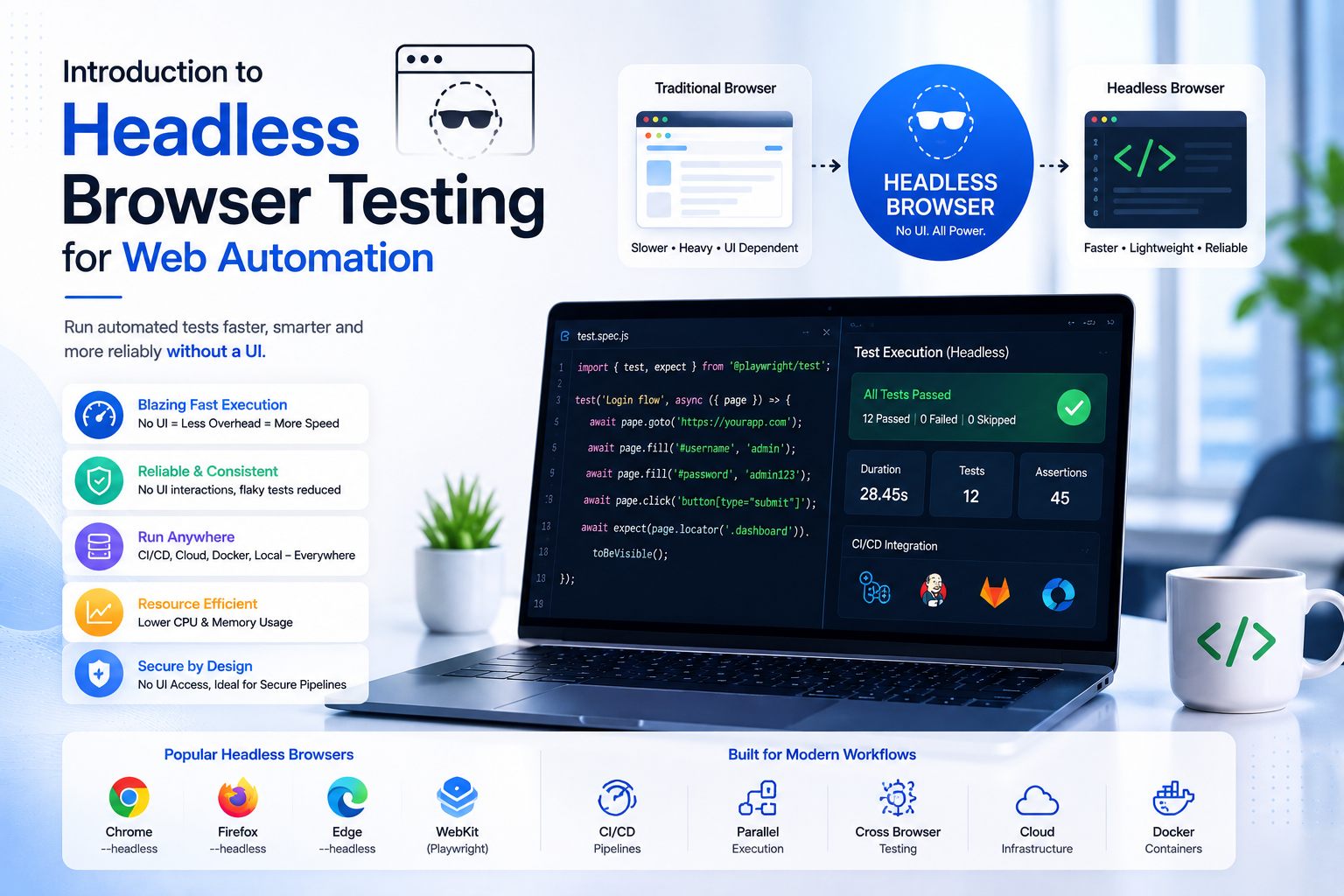
- Headless runs are faster and cheaper, ideal for CI/CD; keep real browsers for visual verification and debugging.
- Chrome, Firefox, and Edge all enable headless through one options flag; the suite code stays identical.
- Expect CI-only differences: viewport defaults, fonts, and timing races that never fired on your laptop.
Selenium is a robust web Automation Testing tool that allows you to automate interactions with web applications across different browsers. One of its most significant advantages is the ability to run tests in headless mode, where the browser operates without a graphical user interface (UI). This tutorial walks through the concept of headless browser Testing, how it improves performance, and how to configure it for Chrome, Firefox, and Edge using the QA Tech Xperts website as an example.
What is Headless Browser Testing?
Headless Browser Testing refers to running automated tests on a browser without the user interface. The web pages are loaded and interacted with, but no graphical interface is displayed. This allows for faster test execution, as the browser does not need to render UI components such as HTML, CSS, and JavaScript.
Headless browsers are useful when you need to run Automation on servers with no GUI, or in environments where execution time is critical, such as Continuous Integration/Continuous Deployment (CI/CD) pipelines. Selenium makes it easy to run tests in headless mode for Chrome, Firefox, and Edge.
Why is Headless Execution Important?
Headless execution enhances the speed and efficiency of Automation Testing:
- Speed: Tests run faster because rendering visual components is skipped. This speeds up the entire Automation process.
- Resource Efficiency: Without a graphical interface to render, headless browsers use less memory and CPU, ideal for large-scale automated Testing environments.
- CI/CD Integration: Headless Testing integrates seamlessly into CI/CD pipelines where execution time and resource usage matter, running quickly and consistently in environments without GUIs.
- Parallel Testing: Since headless browsers consume fewer resources, they are perfect for running tests concurrently, improving test throughput.
Running Selenium Tests in Headless Mode for Chrome
Chrome supports headless mode from version 59 onwards. Selenium configures it through the ChromeOptions class:
import org.openqa.selenium.WebDriver;
import org.openqa.selenium.chrome.ChromeDriver;
import org.openqa.selenium.chrome.ChromeOptions;
import org.testng.Assert;
import org.testng.annotations.Test;

public class ChromeHeadlessTest {
 WebDriver driver;

 @Test
 public void verifyTitle() {
 // Set up ChromeOptions for headless mode
 ChromeOptions options = new ChromeOptions();
 options.addArguments("--headless");

 // Initialize ChromeDriver with options
 driver = new ChromeDriver(options);

 // Navigate to the website
 driver.get("https://www.qatechxperts.com");

 // Output the title
 System.out.println("Page title: " + driver.getTitle());

 // Assert the title
 Assert.assertTrue(driver.getTitle().contains("QA Tech Xperts"));

 // Quit the driver
 driver.quit();
 }
}
Test output: the console prints the page title, confirming Chrome executed the test in headless mode.
Running Selenium Tests in Headless Mode for Firefox
Firefox introduced headless mode in version 56. The FirefoxOptions class enables it (note the single-dash flag):
import org.openqa.selenium.WebDriver;
import org.openqa.selenium.firefox.FirefoxDriver;
import org.openqa.selenium.firefox.FirefoxOptions;
import org.testng.Assert;
import org.testng.annotations.Test;

public class FirefoxHeadlessTest {
 WebDriver driver;

 @Test
 public void verifyTitle() {
 // Set up FirefoxOptions for headless mode
 FirefoxOptions options = new FirefoxOptions();
 options.addArguments("-headless");

 // Initialize FirefoxDriver with options
 driver = new FirefoxDriver(options);

 // Navigate to the website
 driver.get("https://www.qatechxperts.com");

 // Output the title
 System.out.println("Page title: " + driver.getTitle());

 // Assert the title
 Assert.assertTrue(driver.getTitle().contains("QA Tech Xperts"));

 // Quit the driver
 driver.quit();
 }
}
The output is the same shape as Chrome's: the page title printed to the console from a browser you never see.
Running Selenium Tests in Headless Mode for Edge
Edge supports headless mode from version 79. As with Chrome and Firefox, it's one option on the EdgeOptions class:
import org.openqa.selenium.WebDriver;
import org.openqa.selenium.edge.EdgeDriver;
import org.openqa.selenium.edge.EdgeOptions;
import org.testng.Assert;
import org.testng.annotations.Test;

public class EdgeHeadlessTest {
 WebDriver driver;

 @Test
 public void verifyTitle() {
 // Set up EdgeOptions for headless mode
 EdgeOptions options = new EdgeOptions();
 options.addArguments("--headless");

 // Initialize EdgeDriver with options
 driver = new EdgeDriver(options);

 // Navigate to the website
 driver.get("https://www.qatechxperts.com");

 // Output the title
 System.out.println("Page title: " + driver.getTitle());

 // Assert the title
 Assert.assertTrue(driver.getTitle().contains("QA Tech Xperts"));

 // Quit the driver
 driver.quit();
 }
}
Running Headless in CI (GitHub Actions)
The whole point of headless is CI. A minimal GitHub Actions job that runs a headless Selenium suite on every push looks like this:
name: e2e-headless
on: [push]

jobs:
 test:
 runs-on: ubuntu-latest
 steps:
 - uses: actions/checkout@v4
 - uses: actions/setup-java@v4
 with: { distribution: temurin, java-version: 21 }
 - name: Install Chrome
 uses: browser-actions/setup-chrome@v1
 - name: Run headless suite
 run: mvn -B test -Dheadless=true
 - name: Upload screenshots on failure
 if: failure()
 uses: actions/upload-artifact@v4
 with: { name: failure-screenshots, path: target/screenshots }
Headless Gotchas to Expect
- Viewport defaults differ: headless Chrome opens at 800×600 unless you set --window-size=1920,1080, responsive layouts will legitimately differ from your laptop run.
- Fonts and rendering: CI images ship different fonts; pixel-based assertions need a tolerance or a fixed font install.
- Downloads: headless download behavior needs an explicit download directory configured via ChromeOptions prefs.
- Timing: headless is faster, races that never fired locally will fire in CI. That's a bug in the test, not the browser; fix the wait, don't slow the browser.
- Bot detection: some sites treat the headless user-agent as a bot; test environments should whitelist your CI egress, never bypass production protections.
Headless vs Regular Browser: How to Choose
- Speed: headless runs are faster, no UI rendering overhead.
- Resources: headless uses less memory and CPU, ideal for CI runners and parallel grids.
- Visual verification: regular browsers win when you need to see the UI, debug visually, or judge rendering.
- Best fit: headless for CI/CD and regression sweeps; regular browsers for exploratory Testing and visual debugging.
Conclusion
Headless browser Testing is a powerful tool that speeds up test execution and reduces resource consumption. It's ideal for performance Testing, web scraping, and CI/CD integration, but not suitable when visual verification is required. Regular browsers remain necessary for UI Testing and visual debugging.
Want us to run this on your product?
A free 30-minute assessment. We'll tell you what's working, what's costing you time, and where to start. Findings delivered within days.
Get a Free QA Assessment